










Operational Resiliency, Scalability and Disaster Recovery with EDB Postgres Distributed
Extreme high availability minimizes downtime and provides access to data and applications - even through major version upgrades.
Maximize Uptime
Extreme high availability ensures that high-value transactions happen when they need to and deliver the uptime customers and partners expect.
Protect Business-Critical Applications
Redundancy architecture for frequently accessed applications provides a higher level of availability and protection.
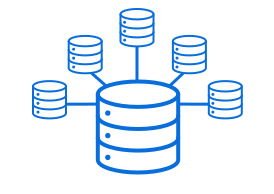
Increase Availability of Web-Based Applications
Redirecting traffic to functional servers ensures online applications stay up and running in the event a server fails.

Avoid Productivity Disruption
Enterprises can perform full version upgrades and maintenance with little downtime and can avoid costly maintenance weekends.
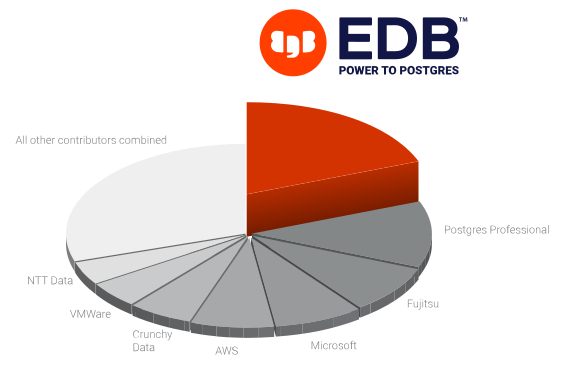
The Biggest Contributor to PostgreSQL, Developers’ Most Loved Database
The Same Postgres Everywhere
EDB creates a secure and consistent environment whether running in Kubernetes, public clouds including Azure, AWS and GCP, on-premises, or a hybrid environment.

Cloud Database Preparation
Get guidance and support on developing and implementing your cloud database strategy.

Hybrid and Multi-Cloud
Combine public and private cloud services for maximum flexibility.

Self-Managed Private Cloud
Extend PostgreSQL with security and performance capabilities for your enterprise.
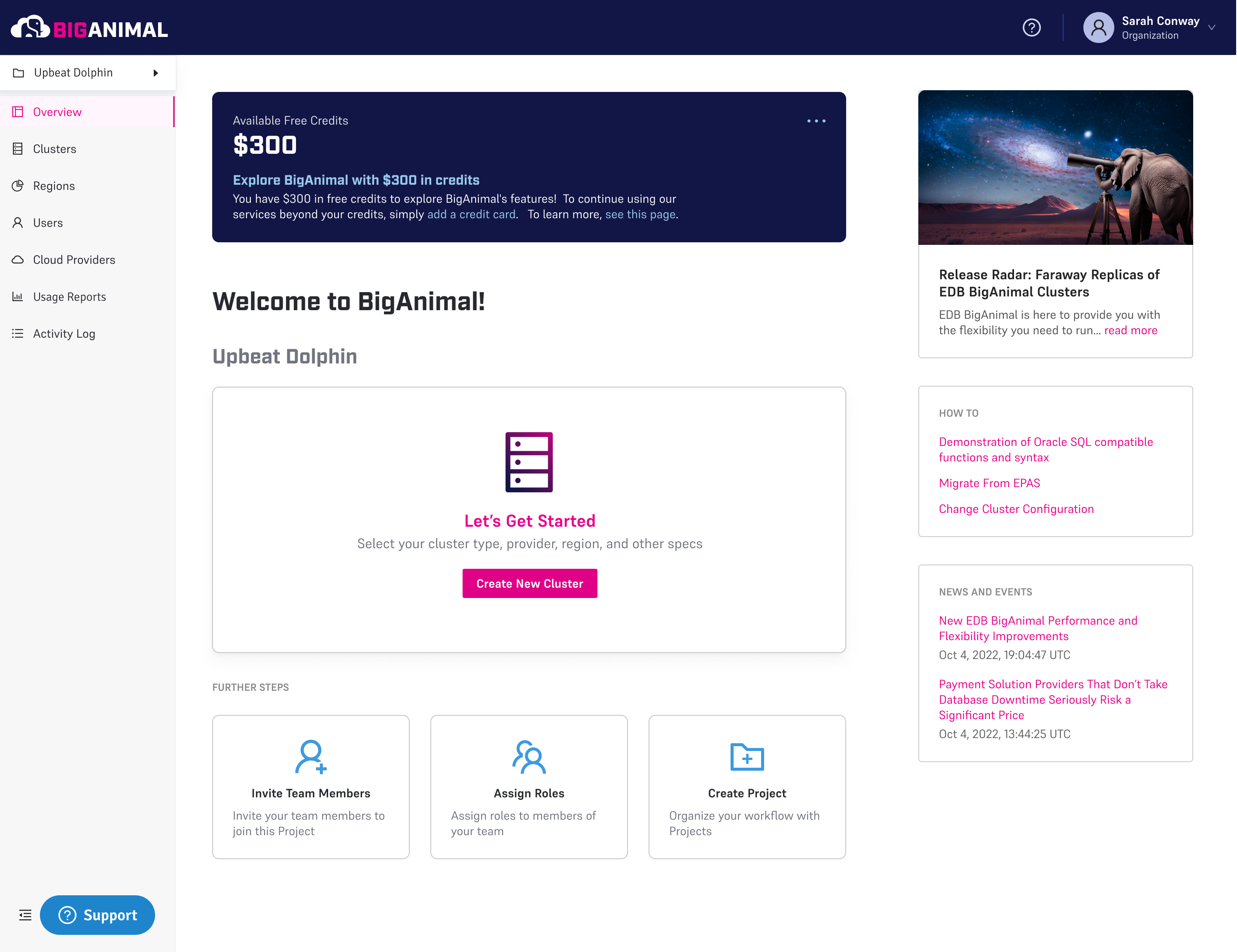

EDB BigAnimal Managed Database
Postgres-as-a-Service for all Major Cloud Platforms

1st with Autopilot on Google Kubernetes Engine in
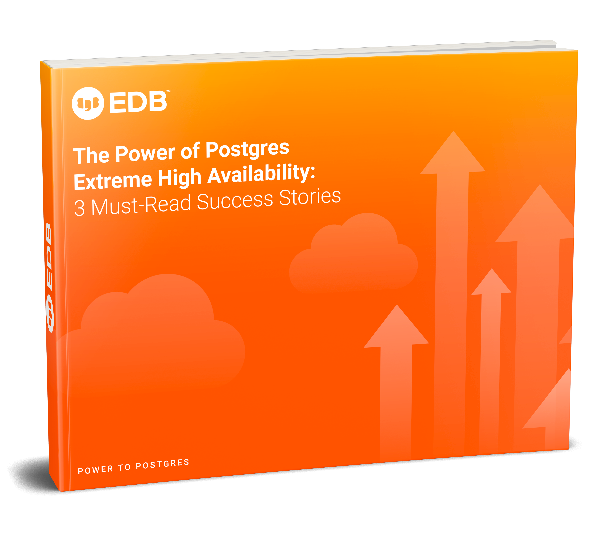
eBook: The Power of Postgres Extreme High Availability: 3 Must-Read Success Stories
This guide demonstrates the undeniable importance of high availability in databases. It explores how Postgres guarantees that and how businesses can continually augment their Postgres database’s reliability. Learn the full potential of Postgres Extreme High Availability, told by three enterprises who have witnessed it first-hand.
Postgres Resources and Support at Your Fingertips
Start fast and keep going strong with the information and tools you need to get the most out of Postgres.