Overview
The installer console is a gated setup experience for Hybrid Manager — a guided, browser-based alternative to authoring the HybridControlPlane custom resource by hand, not a wizard that acts on your behalf. It runs in the cluster, gates on the edb-hcp-operator, and does two jobs: it validates your cluster against HM's dependencies before you attempt an install, and it assembles a well-formed HybridControlPlane custom resource from your answers, which you then review in Preview and apply yourself from its Configure screen. The second job matters on its own — globalParameters and componentsParameters only accept string values, so a hand-authored manifest that uses a bare number or boolean is silently dropped by the API; the installer always emits strings.
It walks five gated screens — Prerequisites, Configure, Preflight, Install, and Postflight — validating at each step so an install is never attempted against unmet requirements.
Prerequisites
- A Kubernetes cluster, as described in Deploying your Kubernetes cluster.
- The
edb-hcp-operatorinstalled — the installer console's Prerequisites screen gates on it; see 1.1 Operator below. - An EDB subscription token, for the registry credential the installer needs to pull its own image and, later, HM's component images.
When to use the installer console
Across every environment — public cloud, private cloud, or air-gapped — the pattern is the same: deploy the Kubernetes cluster, then deploy the installer console, and resolve what it reports before touching the operator manifest directly. It pulls from the customer-facing registry or a private mirror, needs only a pull credential to start, and re-reads cluster state on every page load rather than holding on to prior state.
Use it for a guided first installation — a proof of concept, a first production cluster, or an unfamiliar platform — where its validation and Preview reduce manifest errors. A team with a known-good HybridControlPlane already captured in git, and a mature release process around it, can reasonably skip it and use the operator manifest method instead for automated, repeatable, or GitOps-managed deployments.
Multi-location (multi-DC) deployments sit in between. The installer works one cluster at a time and has no awareness of federation: the configuration that wires locations together — cluster groups and federation pairings, additional trust domains, SPIRE federation, and the synchronized edb-object-storage secret — isn't part of the form. Prepare that separately; see Configuring multi-location architecture and Configuring multiple data centers for Hybrid Manager. What you can do safely is use the installer to stand up each location's HM individually — giving each a unique Location Name on the Configure screen — and apply the federation wiring outside it. The form only ever writes the fields it manages, so opening it against a CR that already carries multi-location configuration passes that configuration through untouched; use Preview to confirm before applying. Treat Location Name as immutable once a location is federated — see 2. Configure.
How it behaves: temporary, resumable, and deliberately unprivileged
The installer holds no state of its own — every screen re-reads the cluster, so it can be deleted and reinstalled, or left mid-installation and resumed later, without losing anything.
It's meant to be temporary because it has no authentication of its own. Its only real protection is that reaching it requires an authenticated kubectl port-forward to the cluster's API — never expose it through an Ingress or a LoadBalancer Service.
Reach the installer only through a port-forward
The installer console has no authentication. Its access control is entirely the requirement that you already hold authenticated kubectl access to the cluster. Reach it exclusively through kubectl port-forward; never expose it through an Ingress, a LoadBalancer, or any other public endpoint.
Because it's unsecured, it deliberately doesn't install the operator or create the component secrets itself — those come from your workstation via edbctl, under your own credentials. It does apply the HybridControlPlane resource itself, from the Configure screen, but only the version you've reviewed in Preview and confirmed — see 2. Configure. The one further exception is the image pull secret: the Prerequisites screen can create it inline, because that action is small, self-contained, and verified directly against the registry before anything is written.
Deploying and running the installer console
Two commands. First, the pull credential — this also satisfies the Prerequisites screen's Image pull secret check:
edbctl image-pull-secret create \
  --registry "$INSTALL_REGISTRY" --username "$REGISTRY_USER" --password "$EDB_SUBSCRIPTION_TOKEN" -y
Then deploy the chart from the EDB Helm repository:
helm repo add enterprisedb-edbpgai "$EDB_HELM_REPO"
helm repo update enterprisedb-edbpgai

helm upgrade --install hm-installer enterprisedb-edbpgai/hm-installer \
  --version "$INSTALLER_VERSION" \
  -n edbpgai-bootstrap --create-namespace \
  --set "imagePullSecrets[0].name=edb-cred"

kubectl -n edbpgai-bootstrap port-forward svc/hm-installer 8080:8080
Open http://localhost:8080 in your browser to reach the Prerequisites screen.
Note
The chart's imagePullSecrets value defaults to an empty list, and the template only renders the field when it's set — omit --set "imagePullSecrets[0].name=edb-cred" and the installer's own pod fails to pull with ImagePullBackOff / 401 Unauthorized, even though helm repo add succeeded. The Helm chart repository and the container image registry are two different endpoints with two different credentials: the chart repo URL carries your subscription token inline, but the pod's image pull is a separate, cluster-side authentication that needs this secret.
The five screens
Each screen gates the next.
1. Prerequisites
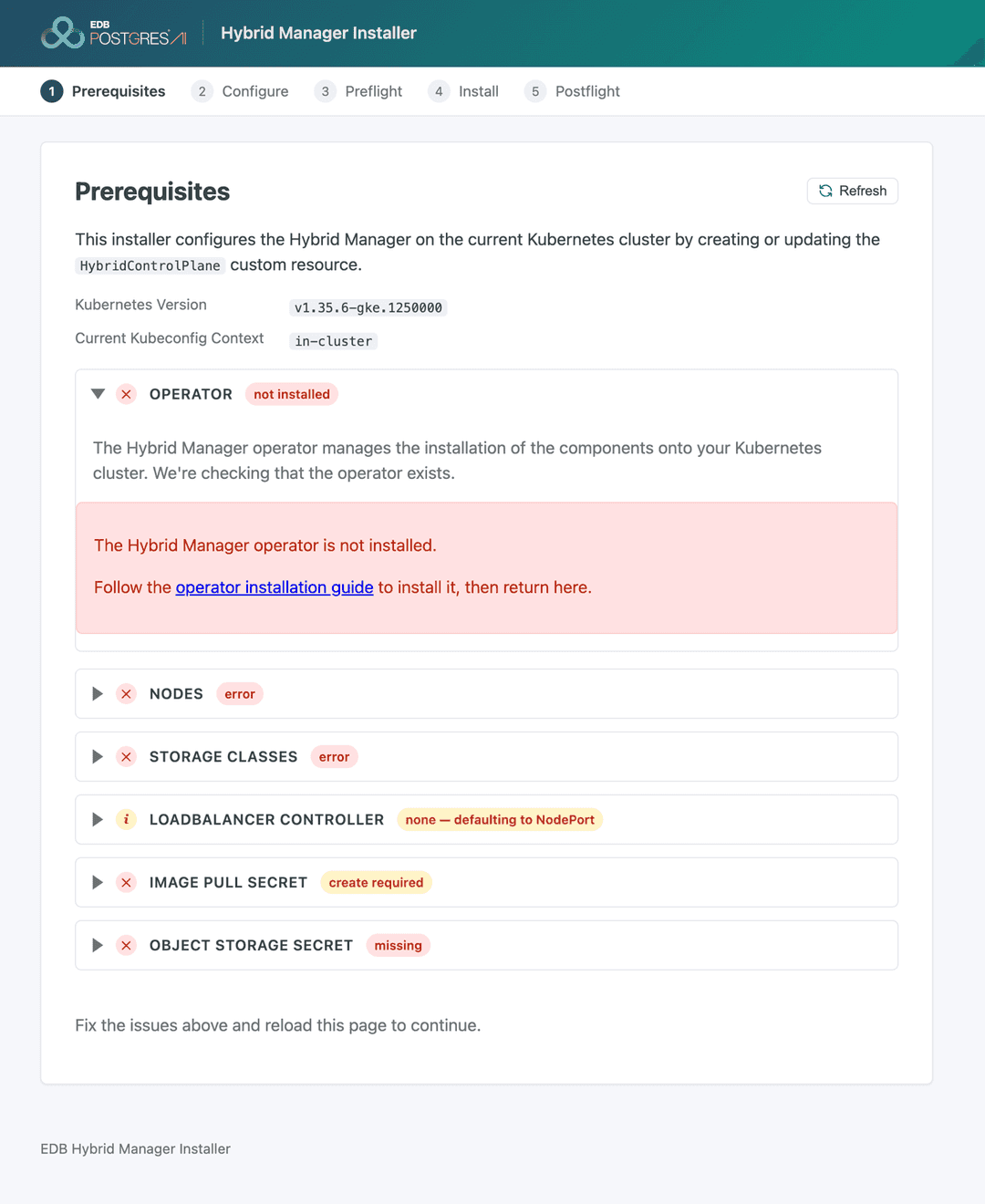
Each row below reports green, amber, or red:
- Green — the requirement is satisfied; there's nothing to do.
- Amber — a warning, not a blocker. Something is absent or unverifiable in a way that doesn't stop the install right now, but it usually means a capability will be missing later, or the installer picked a safe default on your behalf. Read the row's detail, decide whether it matters for you, and move on.
- Red — the requirement isn't met. Fix it before installing.
Read the text, not just the color
Today, only the Operator row's red actually blocks the Begin button — every other row surfaces its finding inline without stopping you. A red Storage Classes or Object Storage Secret row still lets you click Begin; the consequences show up later, at Preflight or Install. Treat every red and amber row as something to resolve now, not something you're technically allowed to skip, since this gating is expected to tighten in future releases.
Green also doesn't always mean verified. Several rows go green once an API call succeeds, not once EDB has confirmed the requirement is actually met: Nodes goes green as soon as it can list your cluster's nodes at all, independent of whether any of them carry HM's labels (more on this below); the Image Pull Secret and Object Storage Secret rows go green once a secret of the right shape exists, not once its credentials have been tested against the registry or bucket. Where a Test control exists, use it — it's the only way to confirm the credential itself works, not just that it's present.
1.1 Operator
The EDB Postgres AI Operator (edb-hcp-operator) is what actually installs and runs Hybrid Manager for you: a Kubernetes operator that manages every HM component — the HM console, Beacon, PGD data planes, the observability stack — as one unit, so you set it up once rather than installing each service individually. It also owns HM's day-to-day lifecycle afterward, including upgrades.
The installer confirms the operator and its CRDs are installed and running; its CRDs must exist before anything else, and this is the only Prerequisites row that blocks Begin. See Install the EDB Postgres AI Operator.
edbctl hm upgrade-operator \
  --registry-uri "$INSTALL_REGISTRY" --registry-username "$REGISTRY_USER" --registry-password "$EDB_SUBSCRIPTION_TOKEN" -y
Since HM 1.4, the operator's release cadence is decoupled from HM's — one operator version supports multiple HM lines. This requires edbctl 1.7.0 or later; older versions fail on --registry-uri with an unhelpful "unknown flag" error. On OpenShift, install the operator through the Red Hat certified-operators catalog (or oc mirror when disconnected) instead — see Installing the operator on OpenShift.
1.2 Kubernetes version and context
This row exists as much to confirm you're pointed at the right cluster as it is to check version compatibility — a safeguard before you commit any of the following rows to a cluster you didn't mean to touch. It displays the cluster's Kubernetes version and the active kubeconfig context, but doesn't assert anything against either one — an unsupported version or the wrong cluster produces no warning here. Check both manually against Kubernetes platform verification before proceeding.
Note
A context of in-cluster means the installer is running with the credentials of a pod already inside the target cluster, rather than through your own kubeconfig — worth knowing, since in-cluster access carries different permission and audit implications than an external admin context.
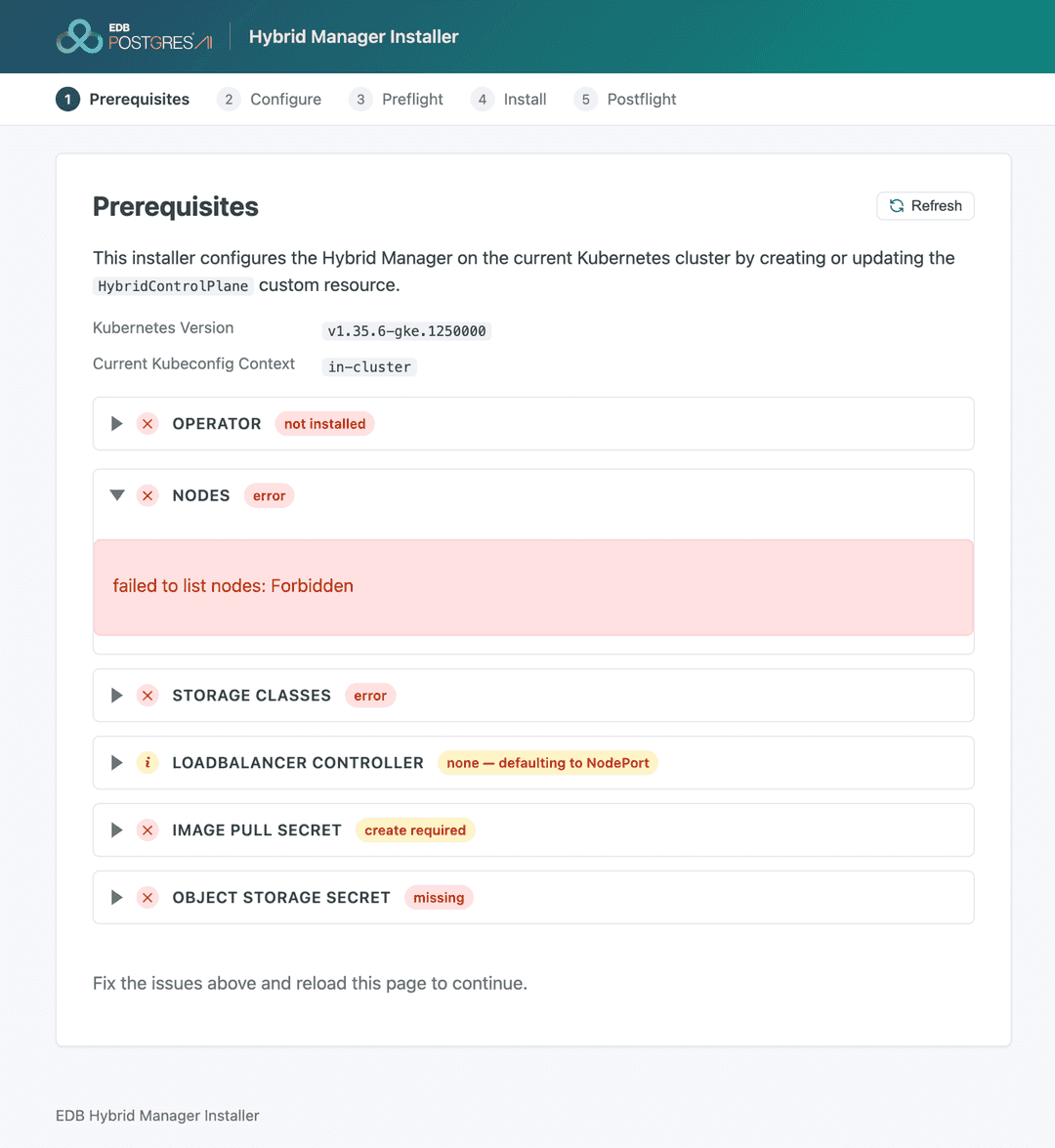
1.3 Nodes
Hybrid Manager separates its workloads across purpose-specific node pools, so that each part of HM runs on hardware sized for its job — you create these pools yourself, then apply the labels that tell the operator where each component belongs.
This row looks for the node role labels edbaiplatform.io/control-plane: "true" (3 or more nodes) and edbaiplatform.io/postgres: "true" (0, or 3 or more nodes) — see Node roles summary and Set your node abstractions. HM's own system databases run on the control-plane pool, so a core-only install needs no data-plane pool at all. Apply labels at the node-pool level, not per node. Each control-plane node also needs a pod capacity (maxPods) of 60 or more — an all-scenario install runs roughly 150 pods — which is the classic silent failure on AKS, where Azure CNI's default maxPods of 30 can't be raised after cluster creation.
Note
This section can report green even with zero labeled nodes — it surfaces what it finds but doesn't currently assert the requirement. Confirm node labels yourself: kubectl get nodes -L edbaiplatform.io/control-plane,edbaiplatform.io/postgres. A restrictive RBAC role bound to the installer's own service account produces a different, more visible failure — failed to list nodes: Forbidden — shown below.
1.4 Storage classes
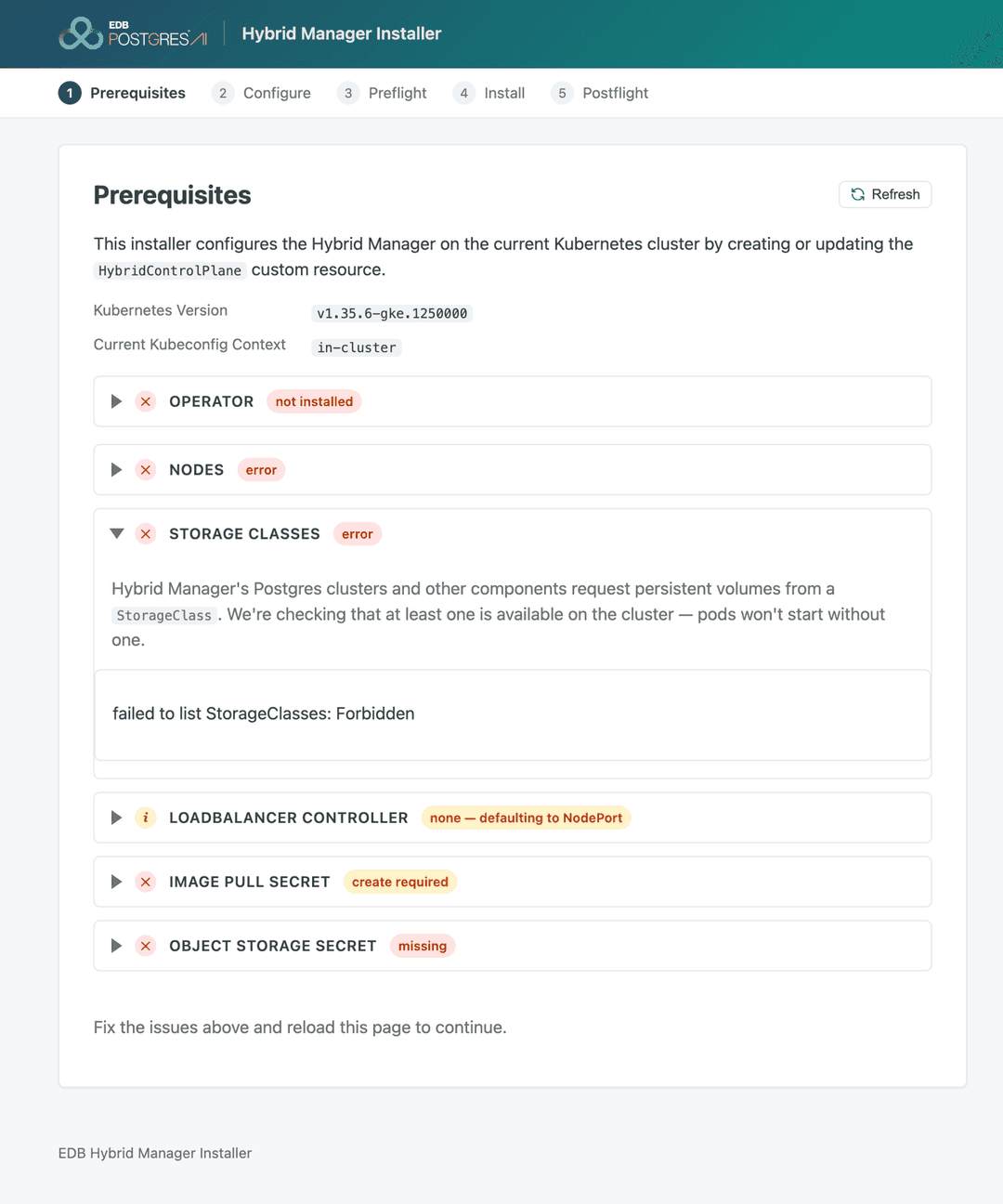
HM's Postgres clusters and other stateful components request persistent volumes from a Kubernetes StorageClass — without at least one available, they have nowhere to store their data.
This row lists the cluster's available StorageClass objects and confirms at least one exists — the class you pick here becomes a required Configure field. It doesn't check for a VolumeSnapshotClass, which HM's backup and restore path needs; verify that separately with kubectl get volumesnapshotclass. See Block storage and Volume snapshots.
1.5 LoadBalancer controller
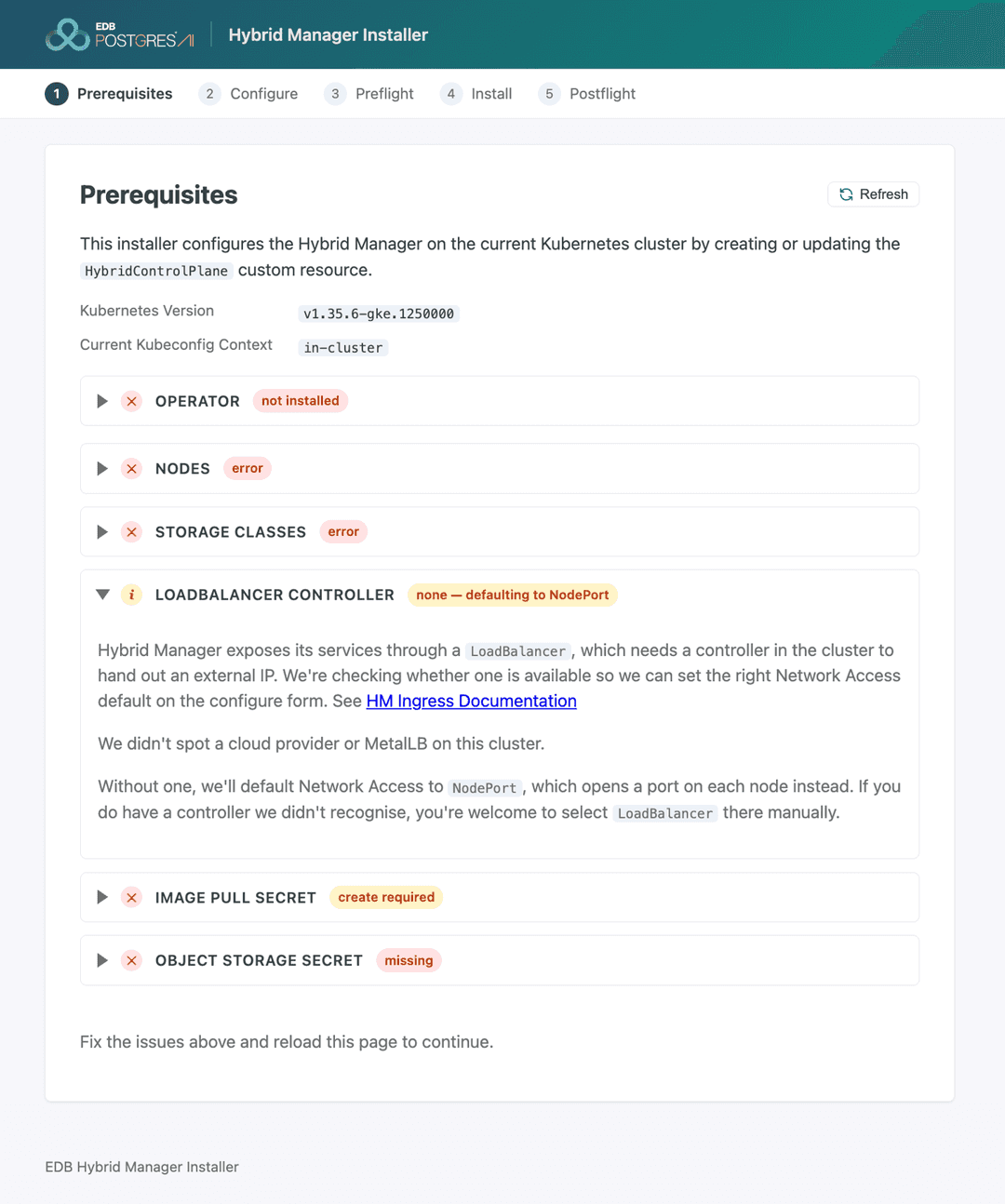
HM exposes its own console and other services through a Kubernetes LoadBalancer Service, which needs a controller in the cluster willing to hand out an external IP for it. Cloud-managed clusters normally provide one automatically; bare-metal and on-premises clusters need something like MetalLB installed first.
This row detects whether such a controller — a cloud load-balancer controller or something like MetalLB — is present, and uses that to set Configure's Network Access default (Load Balancer vs. NodePort). It detects the controller only: DNS, TLS, firewall rules, ingress routing, CNI choice, and subnet sizing all remain your responsibility. Treat an amber "none — defaulting to NodePort" result here as a prompt to talk to whoever owns networking, not as something to click past. See 5.1 Load balancer controller and 5.1.2 NodePort alternative.
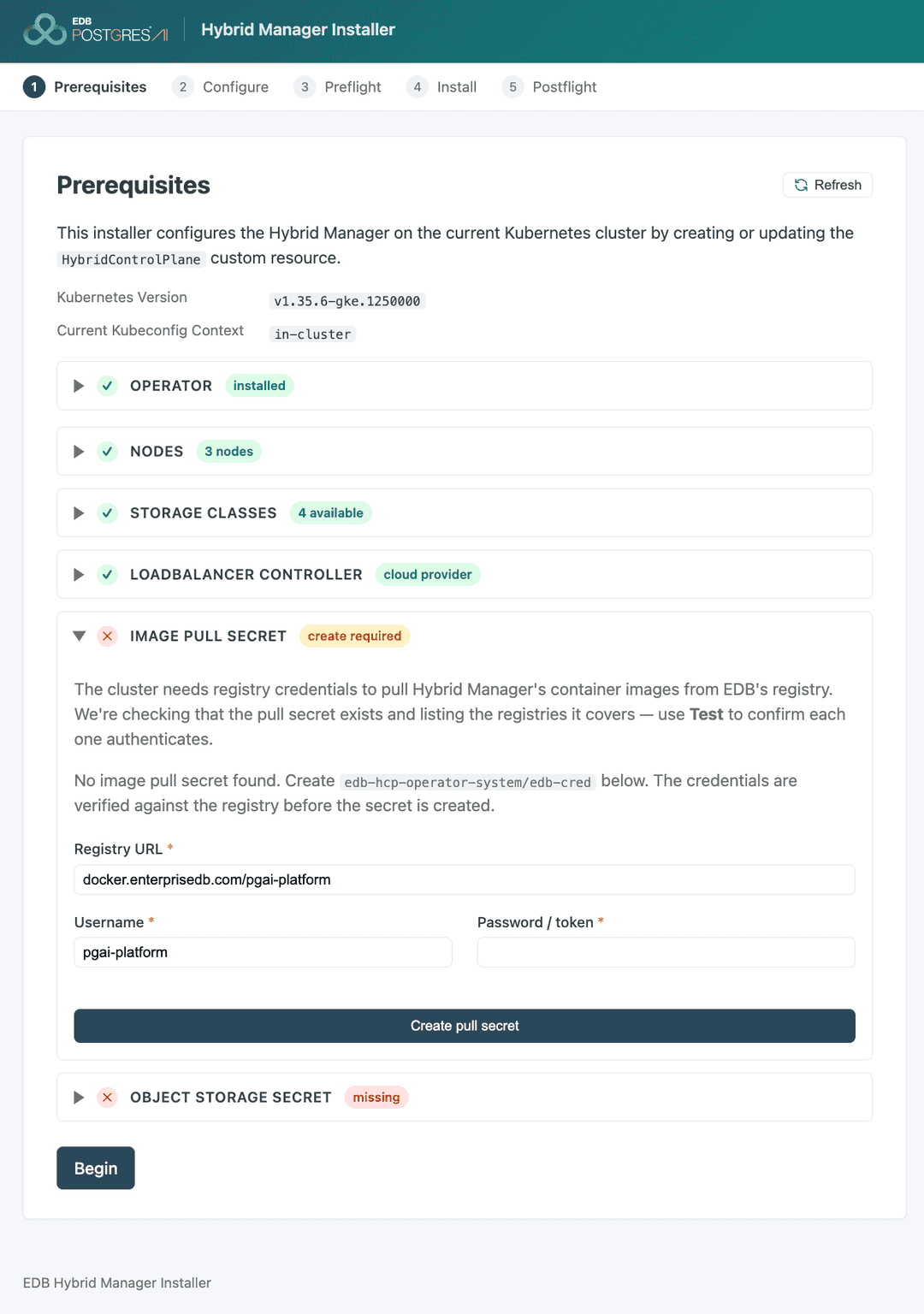
1.6 Image pull secret
HM's container images live in EDB's private registry, so your cluster needs a Kubernetes secret carrying registry credentials before the operator (and later, HM's components) can pull them.
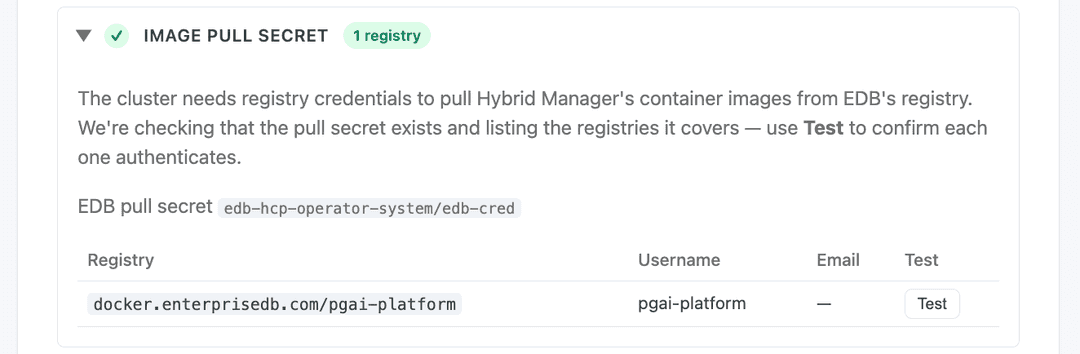
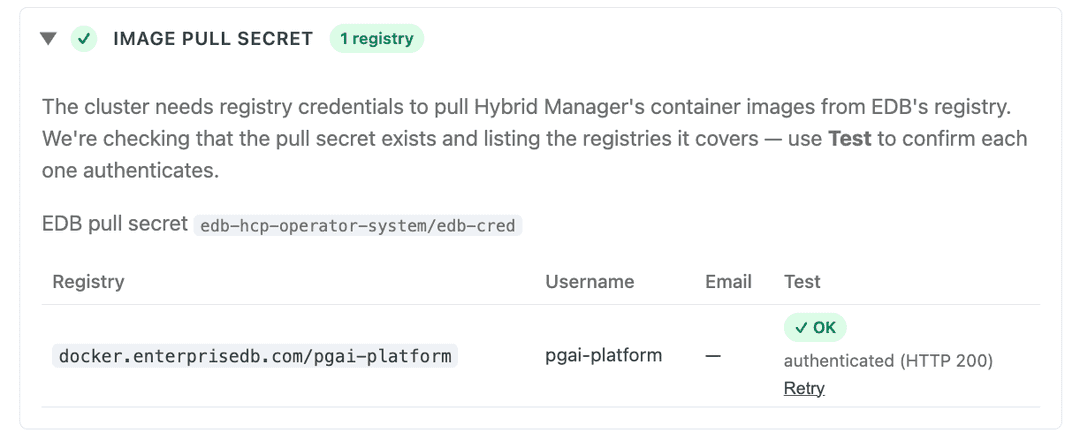
This row looks for OpenShift's openshift-config/pull-secret, or for edb-cred in the operator's namespace elsewhere. If you already ran edbctl image-pull-secret create, this reports green. Otherwise, this is the one Prerequisites row the screen can remediate itself: an inline form creates edb-cred, and the value is verified against the registry before it's written.
Note
edbctl hm upgrade-operator creates a different secret (edb-hcp-operator-pull-secret) for the operator's own image pulls — it does not satisfy this check. A green badge here means the secret exists and decodes, not that its credentials still authenticate; use the screen's per-registry Test control to confirm that separately.
1.7 Object storage secret
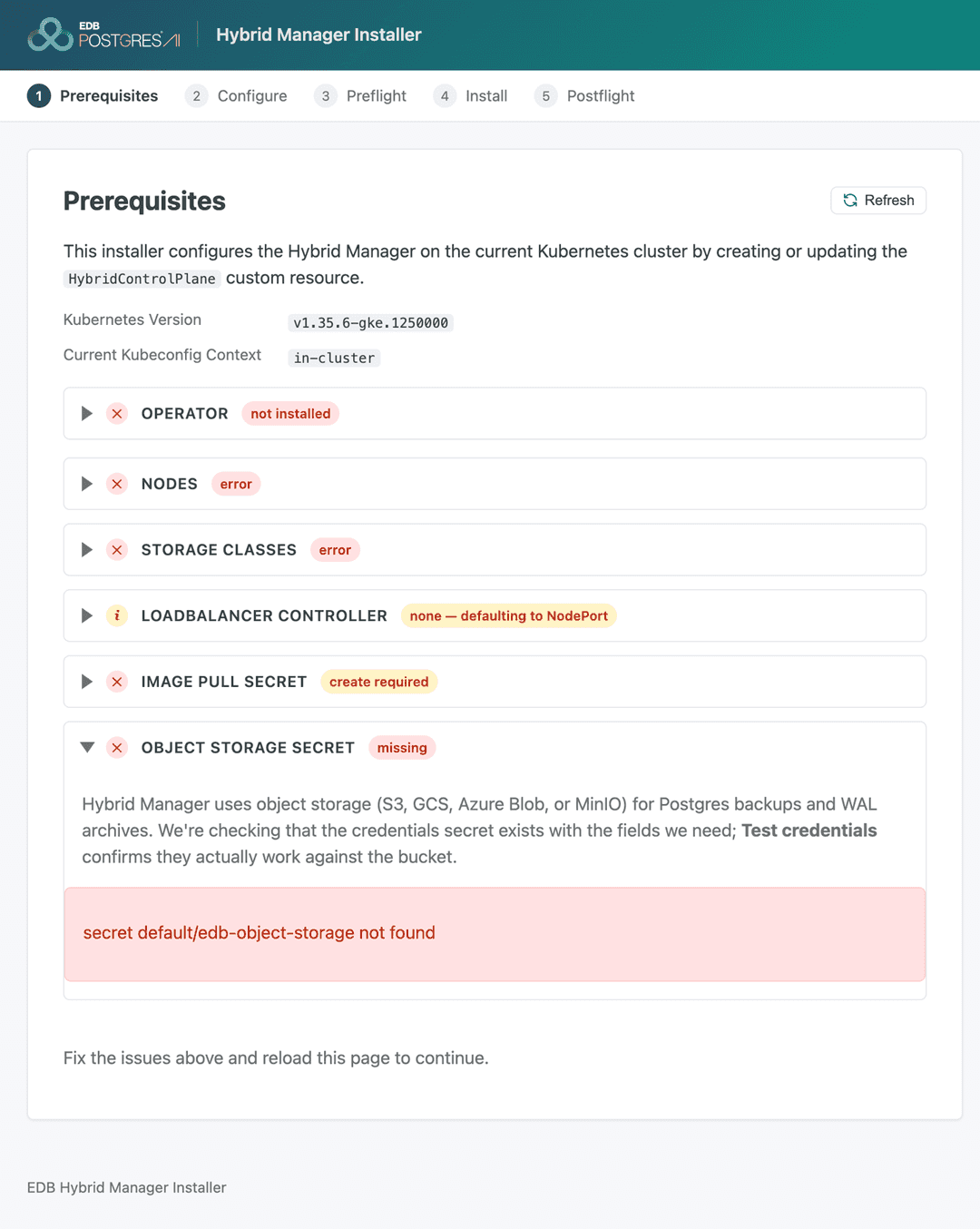
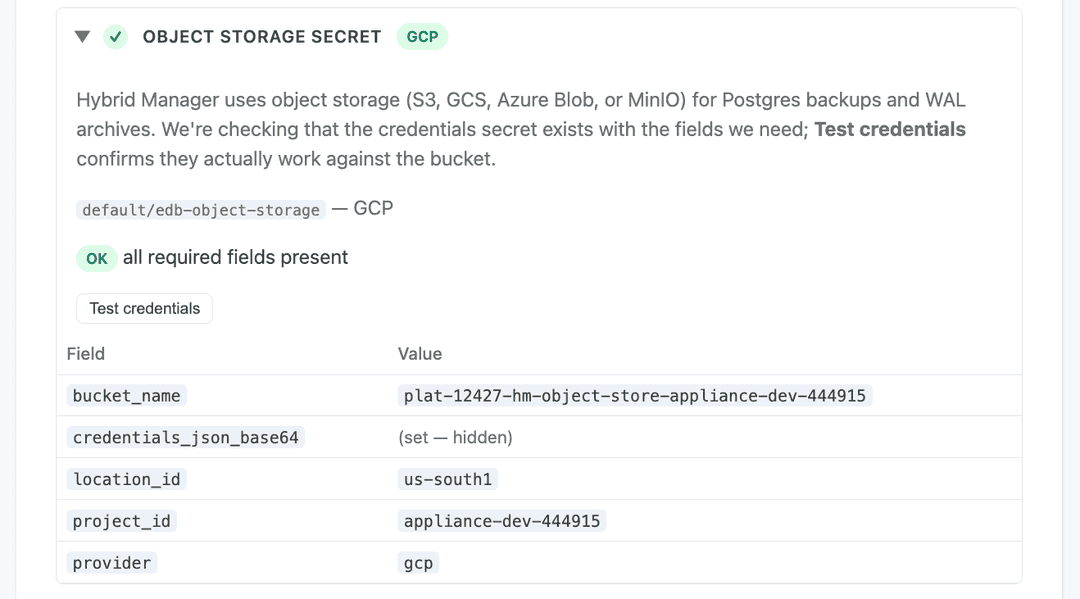
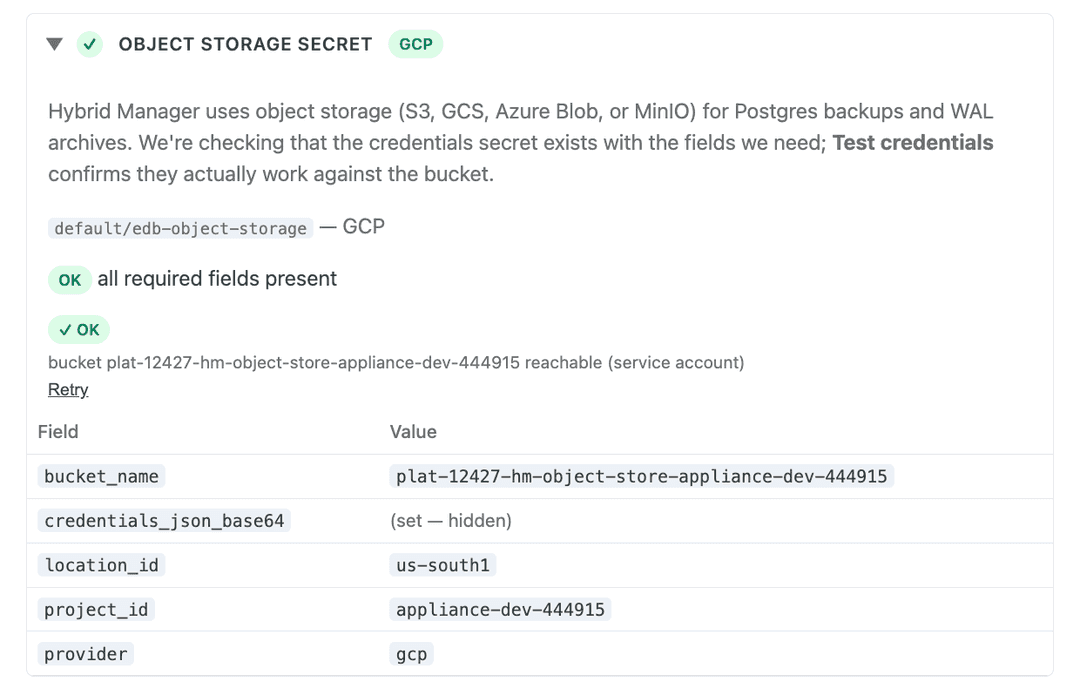
HM uses external object storage — S3, GCS, Azure Blob, or MinIO or any other S3-compatible service — for Postgres backups and WAL archives, so it needs credentials that can reach a bucket before it can protect any data it manages.
This row reads the edb-object-storage secret in the default namespace. The required keys vary by provider (AWS or S3-compatible, Azure Blob, GCP); the screen detects the variant present and checks it for completeness. The installer doesn't create this secret — you create it manually; see 7. Object storage and Configuring object storage.
Note
The credential needs to read bucket metadata, not just objects. On GCP, roles/storage.admin passes; roles/storage.objectAdmin fails the check with forbidden ... does not have storage.buckets.get. The screen's Test credentials control performs that same metadata read — use it to confirm before moving on, and allow up to a minute for IAM changes to propagate.
HM also expects a dedicated bucket. Pointing a new installation at a bucket that already holds another installation's backups isn't detected by any check here — use a fresh bucket per HM instance.
2. Configure
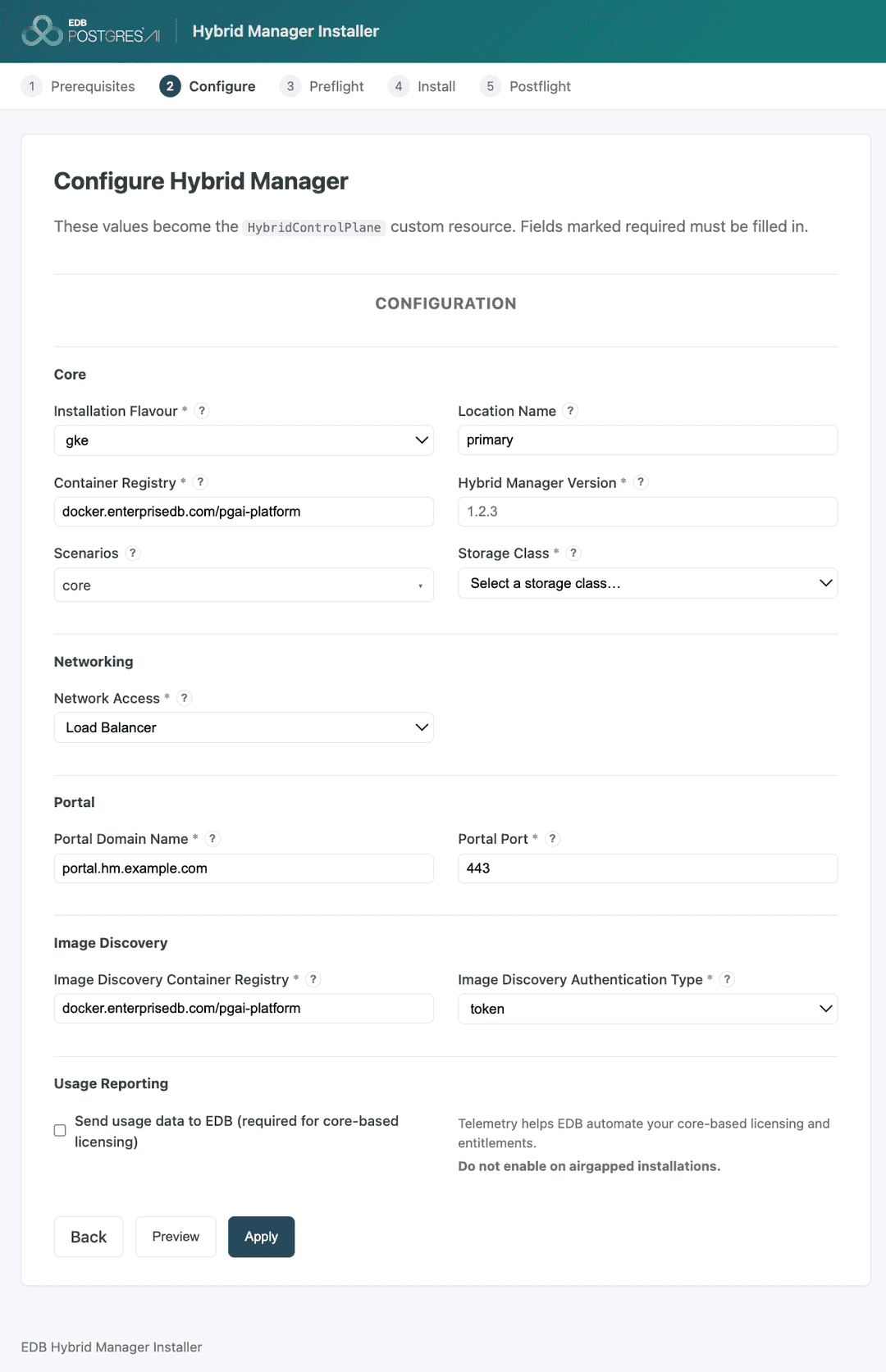
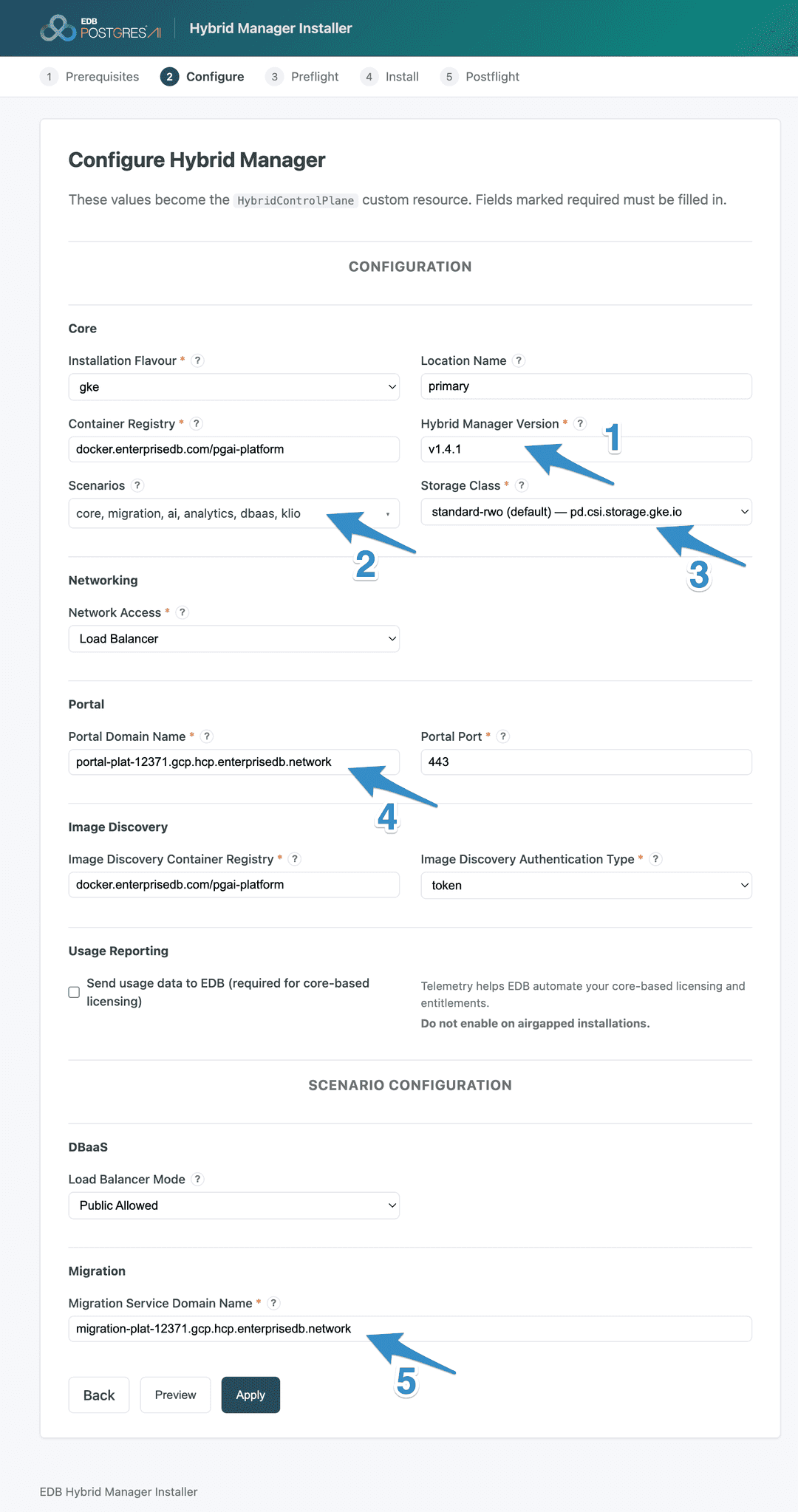
This is where your input becomes the HybridControlPlane custom resource. The installer auto-detects several values — platform flavor (from node provider identity), the Network Access default, available storage classes, and the registry/portal-port fields — leaving six decisions that are genuinely yours:
- Hybrid Manager Version — the HM release to install; must exist in the pull registry.
- Scenarios — feature bundles.
coreis required and sufficient for a working HM console on its own; each additional scenario (dbaas,migration,ai,analytics,klio) carries its own secrets, images, and — forai— hardware, none of which this screen cross-checks (see the note below). - Storage Class — usually the one marked
(default); becomesstorage_classin the CR. - Portal Domain Name — becomes
portal_domain_name; this is the hostname you'll point a DNS record at after install. - Migration Service Domain Name — shown only when the
migrationscenario is enabled; becomesdms_domain_name. - Location Name — defaults to
primary, which is fine for a single-location install. It becomesbeacon_location_idin the CR, the label HM uses to identify this cluster among multiple locations. In a multi-location deployment, give each location a unique value here — a region or datacenter name works well — and never change it on a location that's already federated.
Hostnames are format-checked only, never resolved, so a typo surfaces only later as an HM console link that doesn't load.
Scenarios are a commitment, not a checkbox
Nothing on this screen cross-checks a selected scenario against what else needs to be true for it to work:
- Secrets — Preflight blocks until the matching secrets exist. Run
edbctl hm create-install-secretswith the same scenario set you select here;corealone doesn't coverai,analytics, ormigration. - Registry contents — each scenario pulls its own component images. In a mirrored or air-gapped registry, Install stalls if those images weren't synced.
- Hardware — the
aiscenario needs GPU nodes, which no earlier gate checks for.
Decide the scenario set once, and keep it consistent across this screen, create-install-secrets, and your registry sync. core is always installed; other scenarios can be added later with a CR update.
Use Preview before every Apply — it's the only place computed fields (the load-balancer provider, TDE methods, the beacon host) become visible, and it shows you the fields the form doesn't manage passing through unchanged, including any multi-location wiring already present on the CR. It's worth saving as the artifact you keep for future installs.
Known issues
- Selecting the Marketplace or Observability scenario currently makes the form silently unsubmittable — untick it to proceed.
- The beacon (estate/agent) hostname isn't yet its own form field; it's derived from the portal domain.
- The platform flavor is prefilled but not validated against the cluster — changing it changes the computed load-balancer provider without warning.
3. Preflight
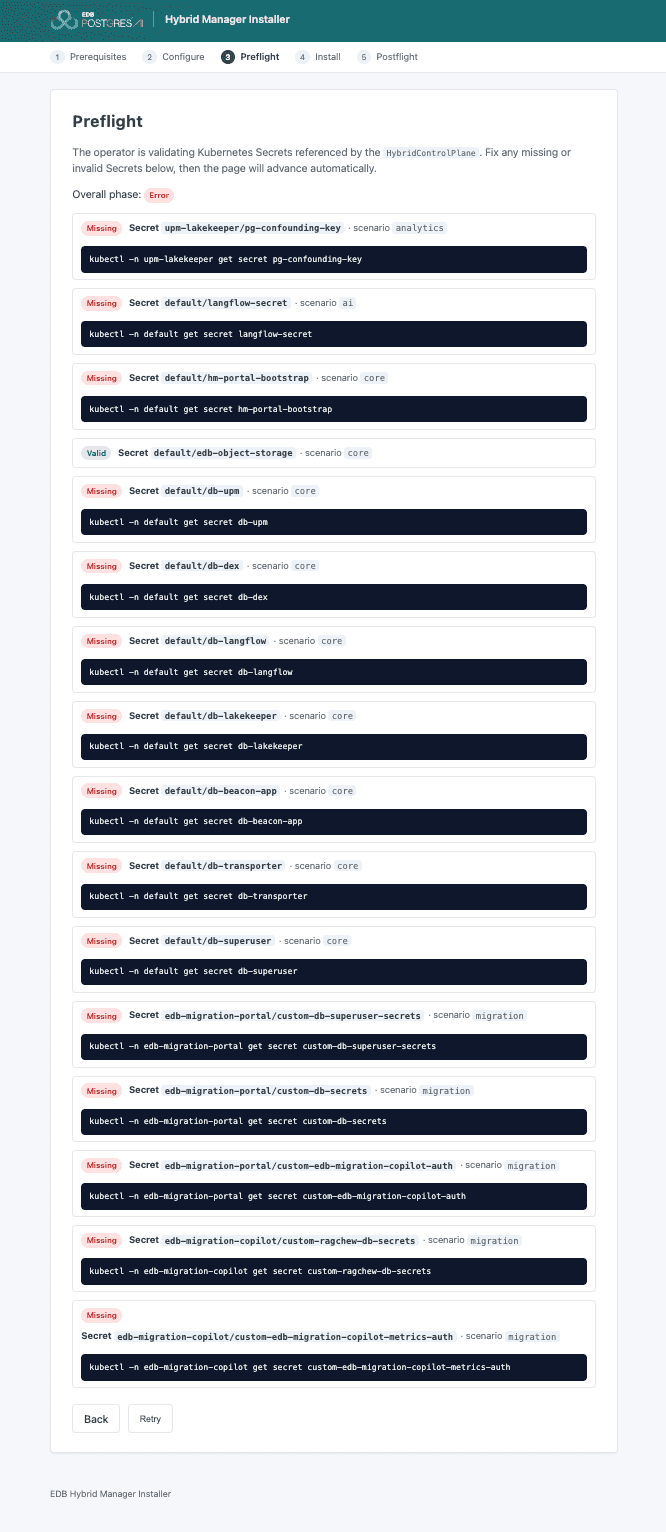
Applying the CR hands control to the operator, and Preflight is the operator's own validation: it declares the secrets required for your selected scenarios, checks each one, and renders a card with kubectl remediation hints for any that fail. This is an absolute gate with no override — Install redirects back here until every card reads Valid.
edbctl hm create-install-secrets --version "$HM_VERSION" -y
Run this with the same scenario set you chose on Configure; it also creates the namespaces those secrets live in. The portal bootstrap secret (admin credentials and the encryption key) is protected from rotation — re-running the command won't reset a wrong admin password.
Note
If the screen shows "Waiting for the operator to create the Preflight resource…" for more than a minute or two, check the operator's own controller logs directly — the message doesn't currently distinguish a slow operator from a missing one. See Troubleshooting preflight checks.
4. Install
The operator deploys HM's components, one scenario at a time. The screen shows a per-component table refreshed every couple of seconds, a progress bar, and a phase that advances the installation once it reaches deployed. If it stalls, check individual component states — pending usually means pods can't schedule, which is where under-labeled or under-provisioned nodes bite. The table only surfaces an explanatory message for components in a failed state, not ones stuck pending — if a component sits at pending without explanation, use the commands below rather than waiting on the screen.
kubectl get hcp edbpgai -o jsonpath='{.status.components[?(@.state=="failed")]}'
kubectl logs -f -n edb-hcp-operator-system deploy/edb-hcp-operator-controller-manager
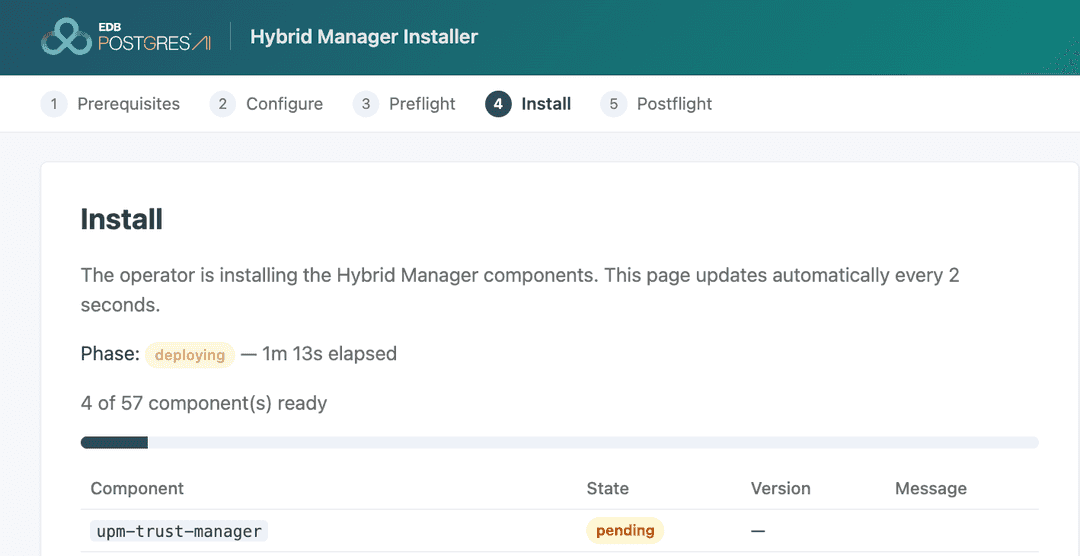
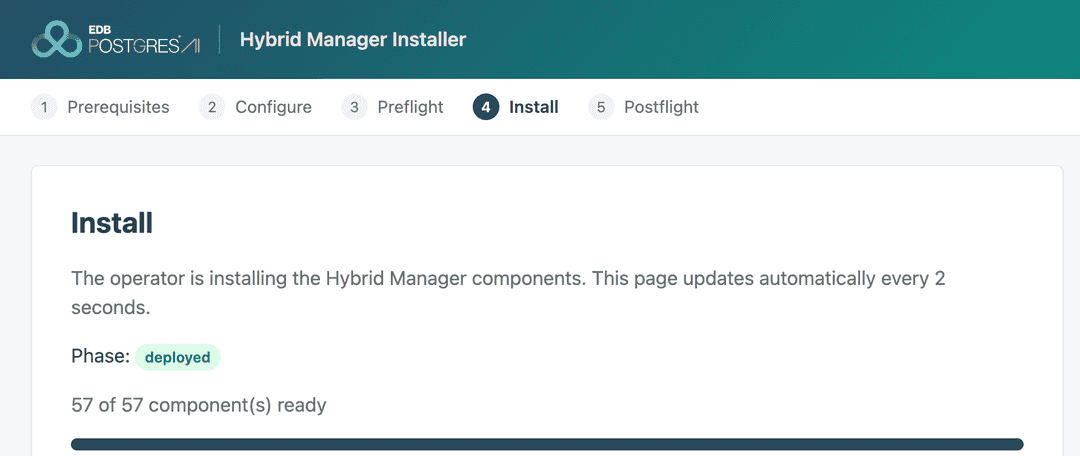
The total component count scales with your selected scenarios — 57 reflects an all-scenarios install; a core-only install reaches deployed with far fewer components.
5. Postflight
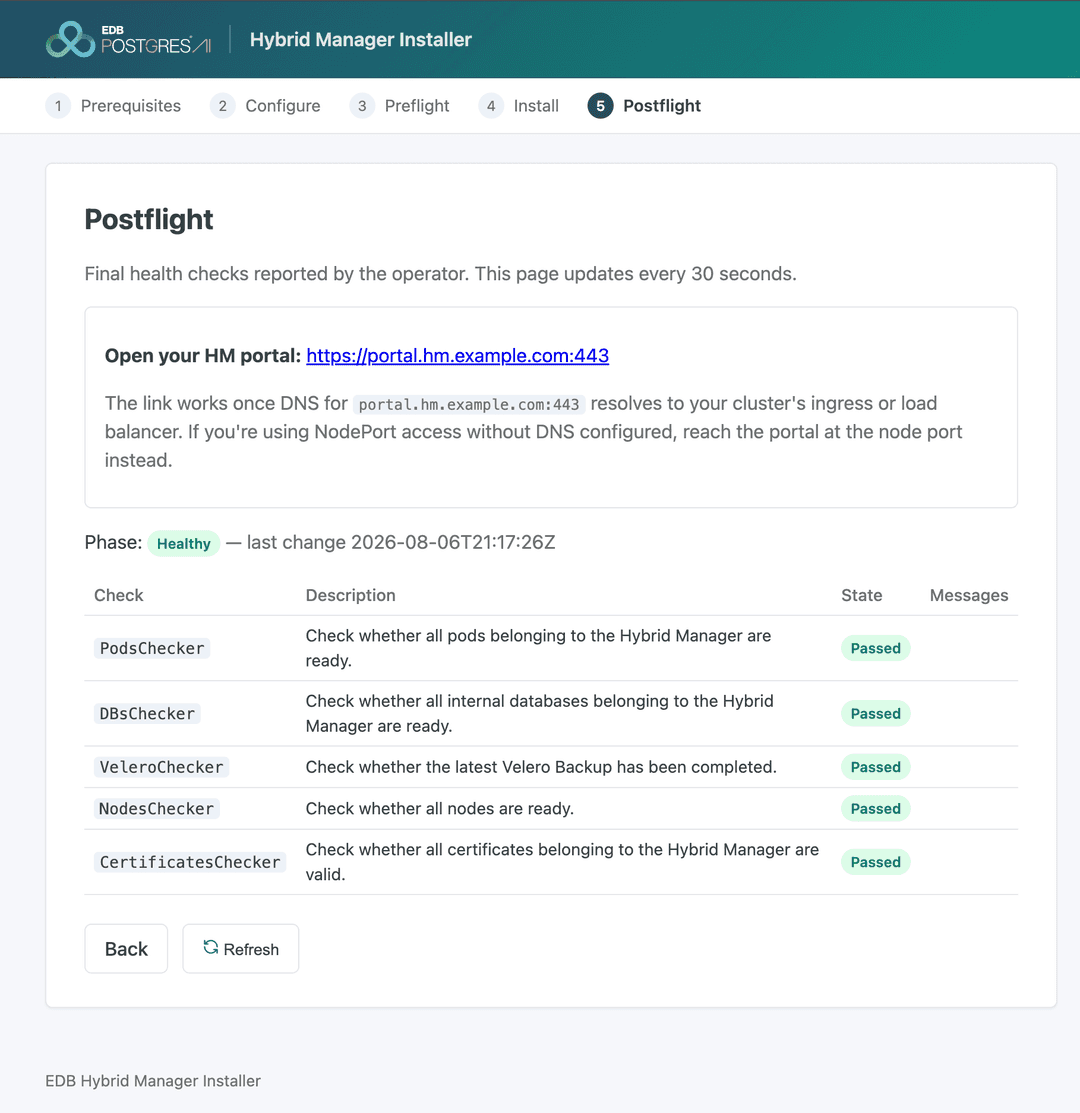
Reports the operator's ongoing health checks — pods, internal databases, backups, nodes, and certificates — and surfaces the HM console link once healthy. DNS is the one remaining manual task: this screen reminds you it's needed but doesn't test it. See Troubleshooting postflight checks.
Postflight is a living report, not a one-time gate — the operator keeps re-running these checks indefinitely, so anything that turns unhealthy after install is a prompt to check the named subsystem, not a stale result.
5.1 Clean up the installer console
Removing the installer is the correct last step, not optional tidying — your HM installation doesn't depend on it staying deployed:
helm uninstall hm-installer -n edbpgai-bootstrapThis removes the installer's Deployment, Service, ServiceAccount, and RBAC, and ends any active port-forward.
Warning
Leave the edbpgai-bootstrap namespace and the edb-cred secret in place. The HybridControlPlane CR references edb-cred for its own image pulls — deleting it breaks the running installation, not just the installer.
If you need the installer again later, reinstall with the same two commands from Deploying and running the installer console — it's stateless, so nothing is lost by removing and redeploying it.
Next phase
After the HM console is reachable, continue to Exploring your post-installation options.