Using the Windows Services applet v13
The Windows operating system includes a graphical service controller that offers control of Advanced Server and the services associated with Advanced Server components. The Services utility can be accessed through the Administrative Tools section of the Windows Control Panel.
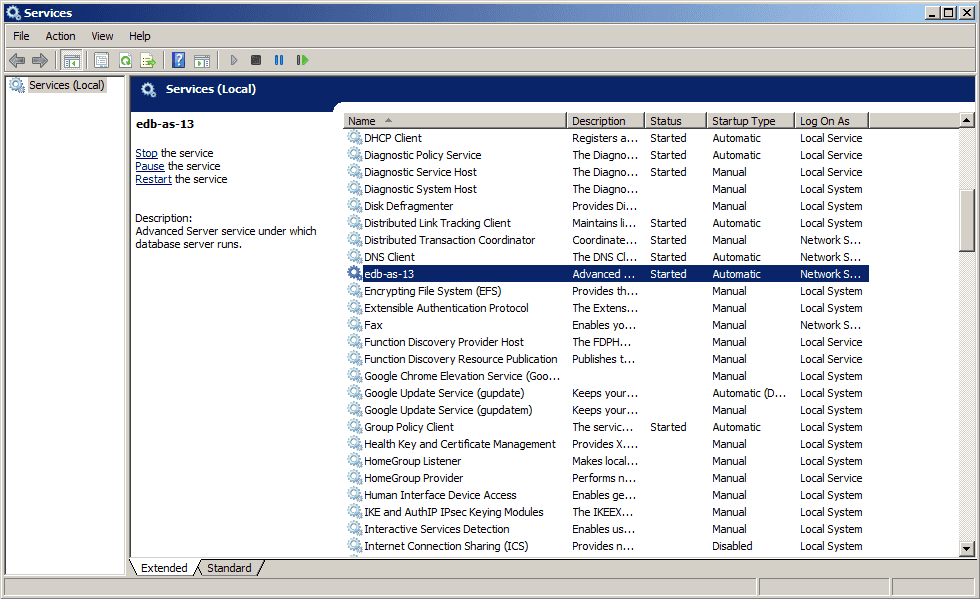
Fig. 1: The Advanced Server service in the Windows Services window
The Services window displays an alphabetized list of services; the edb-as-13 service controls Advanced Server.
- Use the
Stop the serviceoption to stop the instance of Advanced Server. Please note that any user (or client application) connected to the Advanced Server instance will be abruptly disconnected if you stop the service. - Use the
Start the serviceoption to start the Advanced Server service. - Use the
Pause the serviceoption to tell Advanced Server to reload the server configuration parameters without disrupting user sessions for many of the configuration parameters. See Configuring Advanced Server for more information about the parameters that can be updated with a server reload. - Use the
Restart the serviceoption to stop and then start the Advanced Server. Please note that any user sessions will be terminated when you stop the service. This option is useful to reset server parameters that only take effect on server start.