Alerts v10.4
PEM continually monitors registered servers. It compares performance metrics against predefined and user-specified thresholds that specify good or acceptable performance for each statistic. Any deviation from an acceptable threshold value triggers an alert. An alert is a system-defined or user-defined set of conditions that PEM compares to the system statistics. Alerts tell you about conditions on registered servers that require your attention.
Viewing the alerts via Global dashboard
When your system statistics deviate from the boundaries specified for that statistic, the alert triggers. The alert displays a high (red), low (yellow), or medium (orange) severity warning in the left-most column of the Alert Status table on the Global Overview dashboard.
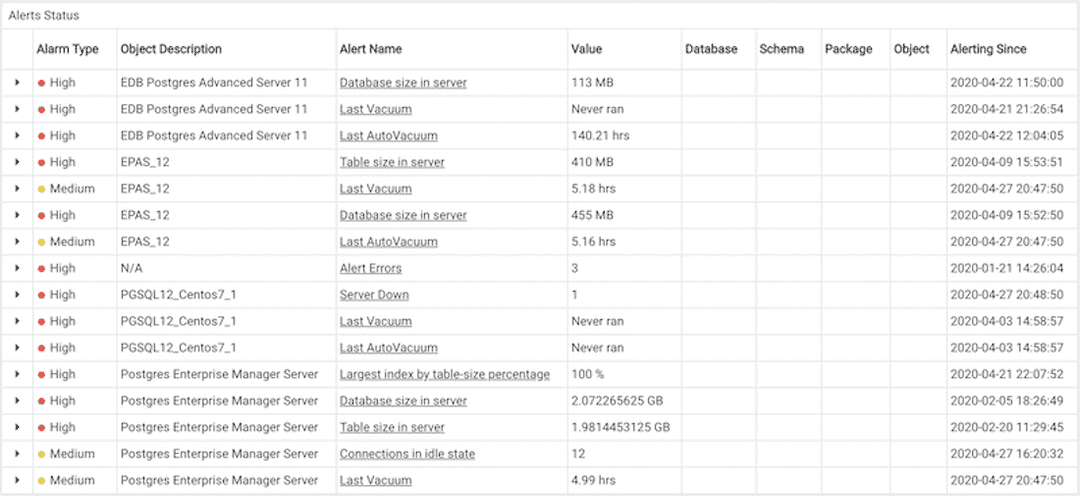
The PEM server includes a number of predefined alerts that are actively monitoring your servers. The alert definition might make details available about the cause of the alert. Select the down arrow to the right of the severity warning to open a dialog box that has details about the condition that triggered the alert.

PEM also provides an interface that lets you create customized alerts. Each alert uses metrics defined on an alert template. An alert template defines how the server evaluates the statistics for a resource or metric. The PEM server includes predefined alert templates, and you can create custom alert templates.
Viewing the alerts via Alerts dashboard
Use the Dashboards menu (on the Monitoring tab) to open the Alerts dashboard. The Alerts dashboard shows a summary of the active alerts and the status of each alert.
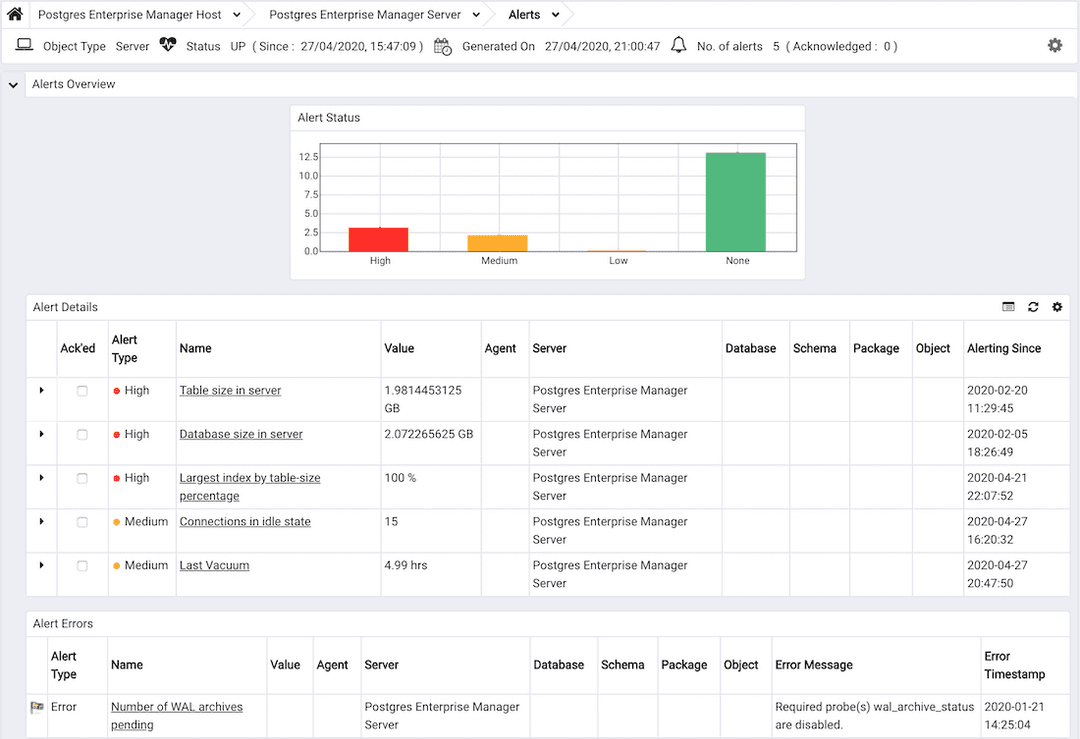
The Alerts dashboard header shows the date and time that the dashboard was last updated and the number of current alerts.
The Alerts Overview section shows a visual representation of the active alerts and a count of the current high, low, and medium alerts. The vertical bar on the left of the graph provides the count of the alerts displayed in each column. Hover over a bar to display the alert count for the selected alert severity in the upper-right corner of the graph.
The Alert Details table provides a list of the alerts that are currently triggered. The entries appear in order from high severity to low severity. Each entry includes information that lets you identify the alert and recognize the condition that triggered the alert. Select an alert to review detailed information about the alert definition.
The Alert Errors table shows configuration-related errors, such as accidentally disabling a required probe or improperly configuring an alert parameter. You can use the information provided in the Error Message column to identify and resolve the conflict that's causing the error.
Customizing the Alerts dashboard
You can customize tables and charts that appear on the Alerts dashboard. To customize a table or chart, select Settings in the upper-right corner.
Use fields on the Personalize Chart Configuration dialog box to provide your display preferences:
- Use the Auto Refresh field to specify the number of seconds between updates of the data displayed in the table or chart.
- Use the Download as field to indicate whether to download a chart as a JPEG image or as a PNG image.
- Use Colours selectors to specify the colors to use on a chart.
To save your customizations, select Save (a checkmark) in the upper-right corner. To delete any previous changes and revert to the default values, select Delete.