Defining a new alert v10.4
Use the PEM client Manage Alerts tab to define, copy, or manage alerts. To open the Manage Alerts tab, select Management > Alerts > Manage Alerts.
The Manage Alerts tab displays a table of alerts that are defined on the object currently selected in the PEM client tree. You can use the Alerts table to modify an existing alert or to create a new alert.
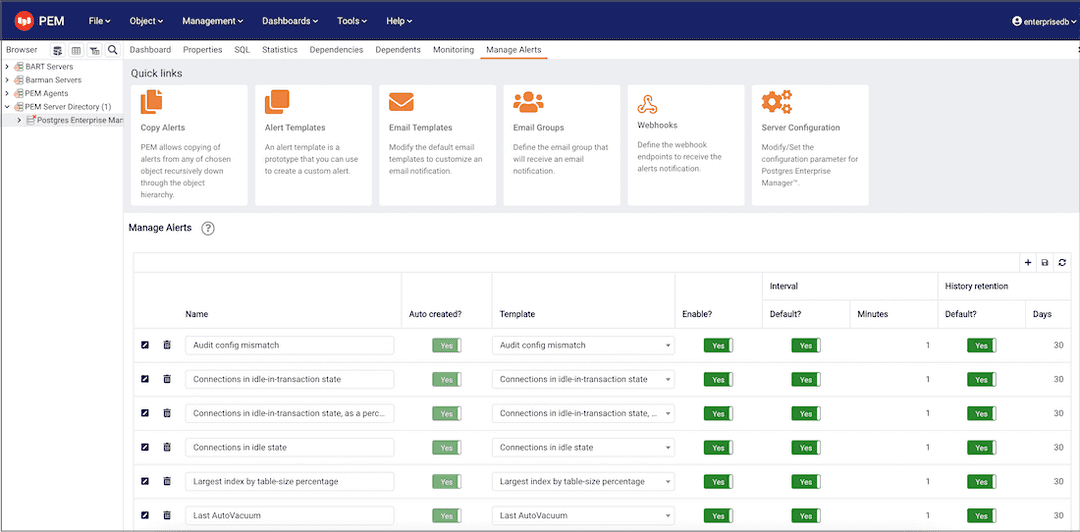
To open the alert editor and create an alert, select the plus sign (+) in the upper-right of the table. The editor opens.
Use the fields on the General tab to provide information about the alert:
- Enter the name of the alert in the Name field.
- Use the Template list to select a template for the alert. An alert template is a function that uses one or more metrics or parameters to generate a value to which PEM compares user-specified alert boundaries. If the value returned by the template function evaluates to a value that's within the boundary of a user-defined alert as specified by the Operator and Threshold values fields, PEM:
- Raises an alert
- Adds a notice to the Alerts overview display
- Performs any actions specified on the template
- Use the Enable? switch to specify if the alert is enabled (Yes) or disabled (No).
- Use the Interval box to specify how often the alert confirms if the alert conditions are satisfied. Use the Minutes selector to specify an interval value. Use the Default switch to set or reset the Minutes value to the default (recommended) value for the selected template.
- Use the History retention box to specify the number of days that PEM stores data collected by the alert. Use the Days selector to specify the number of days to store the data. Use the Default switch to set or reset the Days value to the default value (30 days).
- Use controls in the Threshold values box to define the triggering criteria for the alert. When the value specified in the Threshold values fields evaluates to greater than or less than the system value (as specified with the Operator), PEM raises a Low, Medium or High alert level.
- Use the Operator list to select the operator for PEM to use when evaluating the current system values:
- Select a greater-than sign (>) to trigger the alert when the system values are greater than the values entered in the Threshold values fields.
- Select a less-than sign (<) to trigger the alert when the system values are less than the values entered in the Threshold values fields.
- Use the Threshold fields to specify the values for PEM to compare to the system values to determine whether to raise an alert. You must specify values for all three thresholds (Low, Medium, and High).
The Parameter Options table contains a list of parameters that are required by the selected template. The table displays both predefined parameters and parameters for which you must specify a value. You must specify a value for any parameter that displays a prompt in the Value column.
PEM can send a notification or execute a script if an alert is triggered or if an alert is cleared. Use the Notification tab to specify how PEM behaves if an alert is raised.
Use the Email notification box to specify the email group to receive an email notification if the alert is triggered at the specified level. Use the Email Groups tab to create an email group that contains the address of the users to notify when an alert is triggered. To access the Email Groups tab, select Email Groups located in the Quick Links menu of the Manage Alerts tab.
- To instruct PEM to send an email when a specific alert level is reached, set the slider next to an alert level to Yes. Use the list to select the predefined user or group to notify.
You must configure the PEM server to use an SMTP server to deliver email before PEM can send email notifications.
Use the Webhook notification box to specify one or multiple endpoints if the alert is triggered at the specified level. Use the webhooks tab to create a webhook endpoint to receive the notifications when an alert is triggered. To access the Webhooks tab, select Webhooks located in the Quick Links menu of the Manage Alerts tab.
- Set Enable? to Yes to send the alert notifications to the webhook endpoint.
- Set Override default configuration? to Yes to set the customized alert levels as per the requirement. Once it's set to Yes, all the alert levels are enabled to configure.
- Use the list to select a predefined endpoint to send a notification to for Low alerts?, Medium alerts?, High alerts?, and Cleared alerts?.
Use the Trap notification options to configure trap notifications for this alert:
- Set Send trap to Yes to send SNMP trap notifications when the state of this alert changes.
- Set SNMP Ver to v1, v2, or v3 to identify the SNMP version.
- Use the Low alert, Med alert, and High alert sliders to select the levels of alert to trigger the trap. For example, if you set the slider next to High alert to Yes, PEM sends a notification when an alert with a high-severity level is triggered.
You must configure the PEM server to send notifications to an SNMP trap/notification receiver before notifications can be sent. For sending SNMP v3 traps, the PEM agent uses 'User Security Model(USM)', which is in charge of authenticating, encrypting, and decrypting SNMP packets.
While sending SNMP v3 traps, the agent creates the snmp_boot_counter file. This file is created in the location mentioned by the batch_script_dir parameter in agent.cfg. If this parameter isn't configured or if the directory isn't accessible due to authentication restrictions, then the file is created in the operating system temporary directory. If that's also not possible, then the file is created in your home directory.
Use the Nagios notification box to instruct the PEM server to notify Nagios network-alerting software when the alert is triggered or cleared. For more details, see Using PEM with Nagios
Set the Submit passive service check result to Nagios switch to Yes to notify Nagios when the alert is triggered or cleared.
Use the Script execution box to optionally define a script that executes if an alert is triggered and to specify details about the script execution.
Set the Execute script slider to Yes to instruct PEM to execute the provided script if an alert is triggered.
Set the Execute on alert cleared slider to Yes to instruct PEM to execute the provided script when the situation that triggered the alert is resolved.
Use the Execute script on options to indicate for the script to execute on the PEM server or the monitored server.
In the Code field, provide the script for PEM to execute. You can provide a batch/shell script. In the script, you can use placeholders for the following:
%AlertName%— The name of the triggered alert.%ObjectName%— The name of the server or agent on which the alert was triggered.%ThresholdValue%— The threshold value reached by the metric when the alert triggered.%CurrentValue%— The current value of the metric that triggered the alert.%CurrentState%— The current state of the alert.%OldState%— The previous state of the alert.%AlertRaisedTime%— The time that the alert was raised or the most recent time that the alert state was changed.To invoke a script on a Linux system, you must modify the entry for the
batch_script_userparameter of theagent.cfgfile and specify the user to use to run the script. You can either specify a non-root user or root for this parameter. If you don't specify a user or the specified user doesn't exist, then the script doesn't execute. Restart the agent after modifying the file.To invoke a script on a Windows system, set the registry entry for
AllowBatchJobStepsto true and restart the PEM agent. PEM registry entries are located inHKEY_LOCAL_MACHINE\Software\EnterpriseDB\PEM\agent.
After you define the alert attributes, select Edit to close the alert definition editor and then Save in the upper-right corner of the Alerts table.
To discard your changes, select Refresh. A message prompts you to confirm that you want to discard the changes.
Note
Suppose you need to use the alert configuration placeholder values in an external script. You can do so either by passing them as the command-line arguments or exporting them as environment variables. The external script must have proper execution permissions.
You can run the script with any of the placeholders as command-line arguments.
For example:
#!/bin/bash

bash <path_to_script>/script.sh "%AlertName%  %AlertLevel% %AlertDetails%"
You can define the environment variables for any of the placeholders and then use those environment variables in the script.
For example:
#!/bin/bash

export AlertName=%AlertName%
export AlertState=%AlertState%

bash <path_to_script>/script.sh