
Compiling PostgreSQL extensions with Visual Studio 2026 on Windows

This blog was co-authored by Craig Ringer and Xavier Fischer. This is an updated version of Craig Ringer's Compiling PostgreSQL extensions with Visual Studio on Windows blog post, with Visual Studio 2026.
I’ve seen a number of users struggling with building PostgreSQL extensions under Visual Studio, so I thought I’d see what’s involved in getting it working. The result is this tutorial, showing how to compile a simple extension with Visual Studio 2026 Community.
Requirements
You will need a supported version of Visual Studio installed. These instructions refer to Visual Studio 2026 Community Edition. It is not necessary to use the same Visual Studio version as PostgreSQL was compiled with, or the same version I’m using here. You do need to make sure your Visual Studio version is supported by the release of PostgreSQL you’re targeting (or modify Configuration Properties -> General -> Platform Toolkit to use an older, supported toolkit). If you’re not using VS 2026, some details will of course differ.
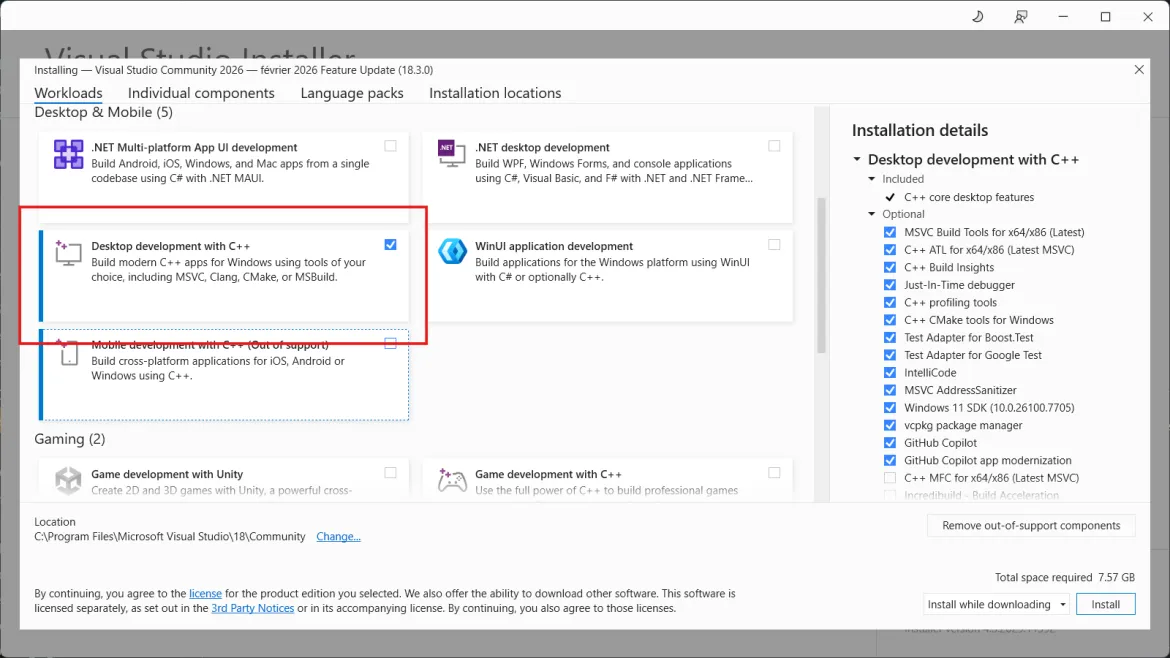
You will also need the "Desktop development with C++" workload, which can be downloaded via the "Visual Studio Installer" program.
To follow these instructions step by step you’ll also need a x64 PostgreSQL install.
Bugs and caveats
I’ve only tested against PostgreSQL 18.2 64-bit version, on Windows 11 with MS Visual Studio 2026. I used the v145 (default) toolchain for the 64-bit build.
There's no more issues with 64-bit toolchain or missing libintl.h; as you'll see the process in now pretty straightforward.
Step by step
Create a new Project (and new Solution if there isn’t one already) with File->New, Project. Use the Empty Project C++ template. I’ll call my example DemoExtension.
Add the source file
Open the new project tree for DemoExtension. Right-click on “Source files” and choose “Add -> New Item”. Create a new C++ source file with your choice of name. Mine is DemoExtension.c. You must explicitly enter the file extension as .c; otherwise Visual Studio will compile the sources as C++, which won’t work with PostgreSQL.
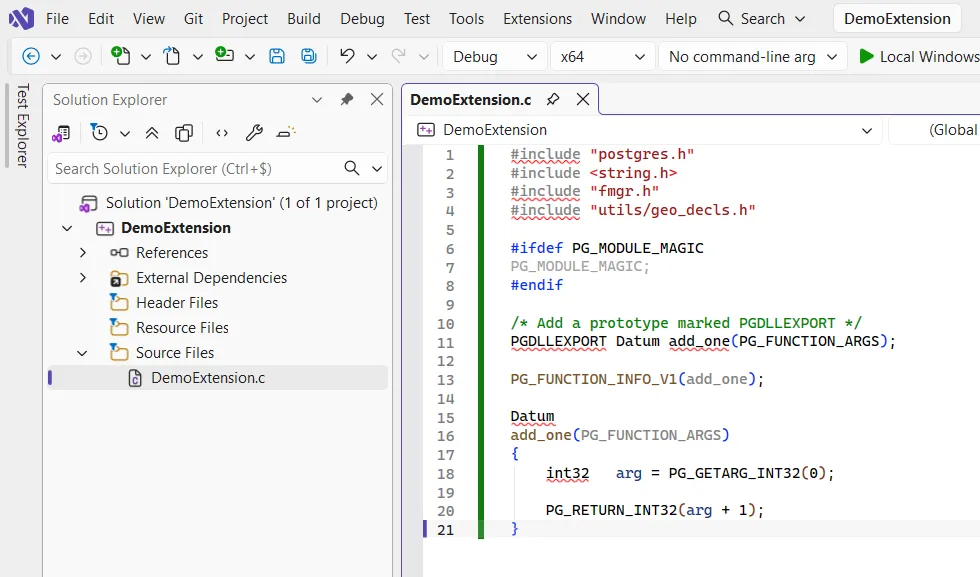
Now paste the example extension code from the PostgreSQL documentation section “Version 1 Calling Conventions” – from the start includes and PG_MODULE_MAGIC to the end of the add_one function. Insert PGDLLEXPORT before Datum on the line before add_one. You should also add a prototype marked PGDLLEXPORT for the function so that MSVC knows to export its symbol.
#include "postgres.h"
#include <string.h>
#include "fmgr.h"
#include "utils/geo_decls.h"

#ifdef PG_MODULE_MAGIC
PG_MODULE_MAGIC;
#endif

/* Add a prototype marked PGDLLEXPORT */
PGDLLEXPORT Datum add_one(PG_FUNCTION_ARGS);

PG_FUNCTION_INFO_V1(add_one);

Datum
add_one(PG_FUNCTION_ARGS)
{
    int32   arg = PG_GETARG_INT32(0);

    PG_RETURN_INT32(arg + 1);
}
Visual Studio doesn’t know where the headers are, so it’ll highlight most of the file with error markers. We need to tell it where PostgreSQL’s headers and libraries are before we can build the project – and make a few other changes while we’re at it.
Project configuration
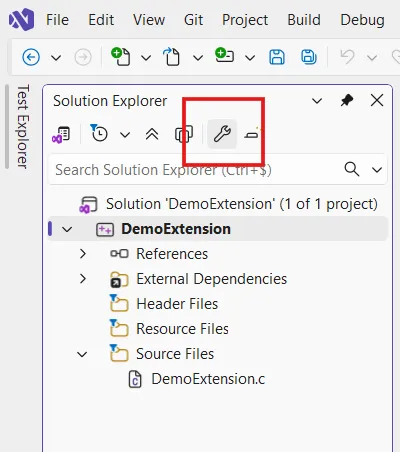
Select the DemoExtension project in the Solution Explorer and click the Get properties wrench icon.
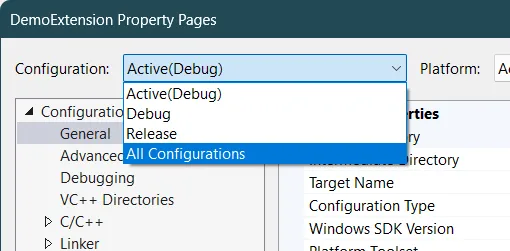
In “Configuration” (top left), choose “All Configurations”.
General settings
- Under Configuration Properties -> General, set “Configuration Type” to “Dynamic Library (.dll)”.
- Under C/C++ -> Code Generation, set “Enable C++ Exceptions” to “No”, and under “Advanced” set “Compile As” to “C Code”.
- Under Linker -> Manifest File, set “Generate Manifest” to “No”.
- Under Linker -> Input -> Additional Dependencies, add postgres.lib to the library list. Do not uncheck “Inherit from parent or project defaults”. Trivial extensions don’t require this, but if you link to any server functions you’ll require it.
Include and library directories
Now you need to add the required include directories.
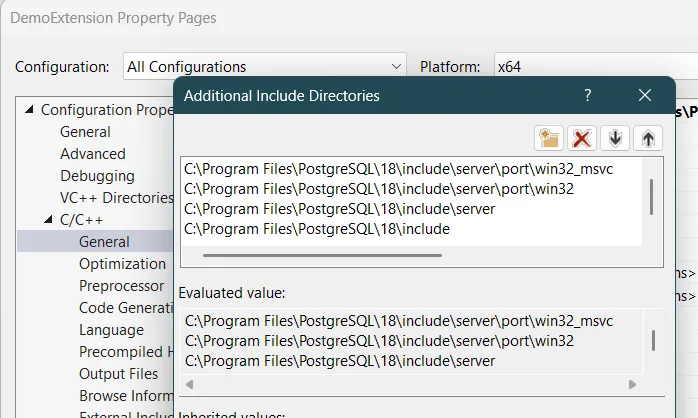
In the properties dialog, go to Configuration Properties -> C/C++ -> General. In Additional Include Directories, pull down the arrow in the right of the textbox and choose “Edit...”. Now, by pasting paths or by folder selection, add the following folders inside your PostgreSQL install directory in this order:
C:\Program Files\PostgreSQL\18\include\server\port\win32_msvc
C:\Program Files\PostgreSQL\18\include\server\port\win32
C:\Program Files\PostgreSQL\18\include\server
C:\Program Files\PostgreSQL\18\include
On my system that looks like:
You’ll also need to set the library path. Under “Linker”->”General”, in Additional Library Directories. In my case that’s C:\Program Files\PostgreSQL\18\lib. While you’re there, set Link Library Dependencies to No.
Click “OK”. The error highlights on your extension file should go away when you return to the source file.
Building the project
Choose “Release” from the pull-down menu.
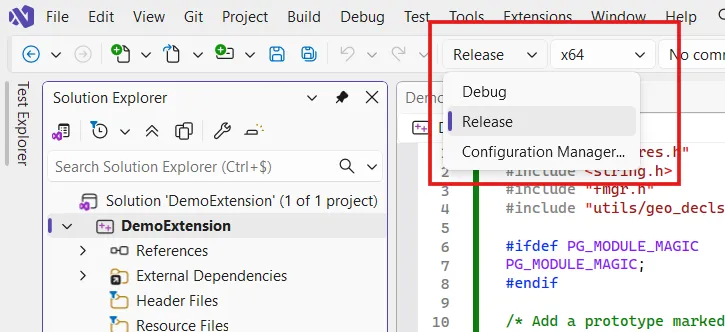
Right-click on your project in the solution explorer and choose “Build”.
You should get no errors in the build output.
Installation and testing
At this point you must fish the DLL out of the project and copy it into PostgreSQL’s lib directory. In my case that means copying <project root>\x64\Release\DemoExtension.dll to C:\Program Files\PostgreSQL\18\lib.
Since we have not defined the control file or setup file for an extension, we’ll just manually load the extension by connecting as user postgres or another superuser, and running:
CREATE FUNCTION add_one(integer) RETURNS integer
     AS 'DemoExtension', 'add_one'
     LANGUAGE C STRICT;
If all goes well, you can now use your brand new extension:
postgres=# CREATE FUNCTION add_one(integer) RETURNS integer
postgres-#      AS 'DemoExtension', 'add_one'
postgres-#      LANGUAGE C STRICT;
CREATE FUNCTION
postgres=# SELECT add_one(4);
 add_one
---------
       5
(1 row)
If you were to deploy your extension to others, you’d want to create a .control file and an extension SQL setup file, per the PostgreSQL documentation.
Related work
Shortly after finishing this, while searching for reports of users who’d been struggling with building extensions on Windows, I found Build PostgreSQL C Functions on Windows by Tim Child. I didn’t use his article as a resource when writing this, and thankfully a few things have improved since then. It looks like a good resource, so if you find yourself stuck take a look at it.